Landscape clips were built for YouTube, webinars, product demos, and desktop
players. TikTok, Reels, Shorts, and Stories need a 9:16 frame. Today, the market has three conversion
methods: Fallback fit or blur, AI crop, and AI outpaint. OmniFit provides both AI Crop and AI Outpaint,
so you can either cut to the focal point or expand the canvas without cutting the original content.
For TikTok & ReelsFor Shorts & StoriesCrop or AI expand
Fallback: fit or blurKeep the full landscape clip, but make it small inside a vertical frame.
Common: AI cropTrack the focal point, then cut away side content to fill 9:16.
OmniFit: AI outpaintKeep the original frame and outpaint the top and bottom areas.
The current market
Three ways creators convert landscape video to vertical.
Most current tools solve 16:9 to 9:16 with fit-to-canvas padding, blur background, or AI auto-reframe. Those
methods are useful, but they either make the real video smaller or crop away part of the original frame.
OmniFit supports both AI Crop and AI Outpaint, so you can choose a fast focal-point crop or preserve the
landscape content and generate the missing vertical space.
Method 1 · fit to canvas
Blur or padding
The full landscape video stays visible, but it sits inside a vertical canvas with blurred background,
colors, graphics, or captions filling the empty space.
No original pixels are cut away.
The actual video becomes smaller in the feed.
Useful for quick publishing, but often looks repurposed.
The editor identifies faces, speakers, action, or the main object, then crops the wide video into a tall
frame.
Fast and common across resize and auto-reframe tools.
Strong when the subject is central and the background is disposable.
Weak when the scene, screen share, product, or group context matters.
OmniFit supports this as Crop mode.
Please see below for details on available tools.
Method 3 · ai outpainting
Expand with OmniFit
OmniFit keeps the existing landscape frame unchanged, then uses AI outpainting to generate the top and
bottom areas needed for a vertical 9:16 result.
No cutting or changing the original landscape content.
The vertical canvas is filled with scene-matched generated space.
Best when the wide composition matters but the placement is vertical.
OmniFit supports this as Expand mode.
Please see below for details on available tools.
Most common fallbackFit / blur padding
Fastest native fillAI smart crop
Most content-preservingAI expand
OmniFit modesCrop + Expand
Current fit and blur tools
Method 1: Preserve everything with padding
Many editors let you fit the whole landscape clip into a 9:16 canvas. The empty top and bottom can
become black bars, brand color, titles, subtitles, or a blurred duplicate of the video.
Good when every part of the landscape shot must remain visible.
Useful for webinars, slides, tutorials, and screen recordings.
Often less immersive because the real video occupies only the middle band.
CapCut walkthrough: fit a landscape clip inside a portrait project and use a
blurred background-style treatment.
Current auto-reframe tools
Method 2: Crop around the main focal point
AI smart crop tools analyze faces, speakers, motion, or the main object, then move the vertical crop
window so the important subject stays centered while the final video fills 9:16.
Best for talking-head clips, podcast cuts, interviews, and simple product shots.
Common AI behavior: detect the focal point, keep it centered, and crop the sides.
Risk: the crop can still remove supporting context, slides, UI, scenery, or a second person.
Premiere Pro Auto Reframe tutorial: a representative smart-crop workflow for
converting horizontal footage to vertical.
OmniFit ai outpainting
Method 3: Expand the top and bottom with AI
OmniFit's outpainting path is the premium format transformation. Instead of cutting the wide video or
surrounding it with filler, OmniFit keeps the original landscape frame intact and generates the missing
vertical canvas above and below it.
OmniFit is purpose-built around format transformation rather than general timeline editing.
Expand mode keeps the existing landscape content unchanged.
The generated top and bottom space helps the result feel more native to vertical surfaces.
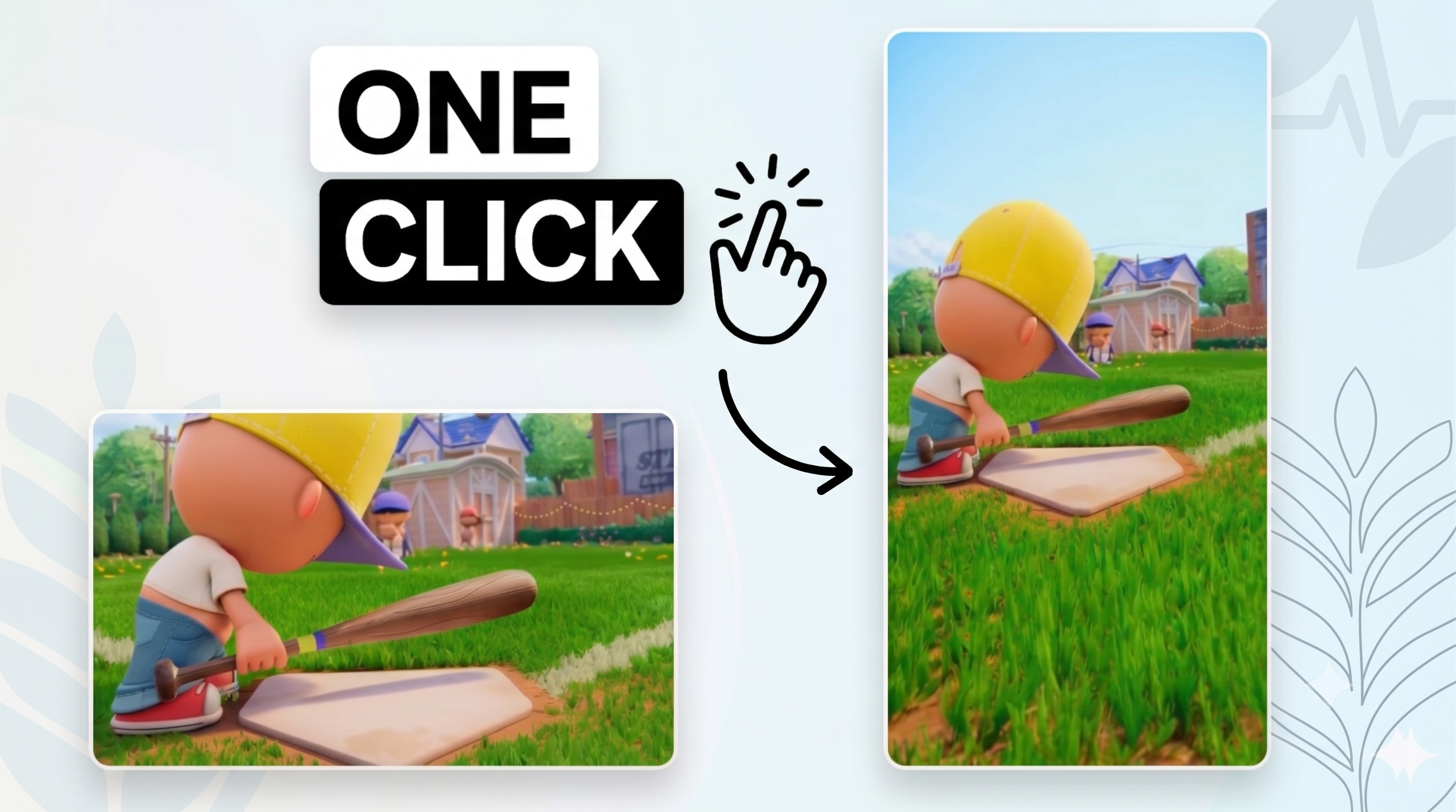
Landscape input
OmniFit outpaint output
The smaller landscape source becomes a full vertical result through OmniFit
outpainting.
OmniFit AI outpaint
The outpainting method keeps the wide video intact.
Crop-based tools decide what to remove. Blur-based tools preserve the wide video but shrink it into a narrow
band. OmniFit's AI outpaint method keeps the existing landscape content unchanged, then generates the top and
bottom area needed for a full vertical result.
The value of OmniFit Expand is not just turning 16:9 into 9:16. It is preserving the shot you already have
while creating new vertical canvas around it.
No crop
The original landscape frame stays visible, so faces, hands, products, captions, scenery, and UI details do
not disappear at the left or right edge.
No blur filler
The output is not just a small landscape clip surrounded by a blurred duplicate. OmniFit generates new
scene-matched vertical space.
Designed for format transformation
OmniFit is built around converting one format into another, so landscape-to-vertical expansion is treated as
the main workflow, not a timeline workaround.
OmniFit's two modes
Choose Crop when speed matters. Choose Expand when content matters.
Landscape-to-vertical conversion is not one problem. Sometimes the right answer is a smart crop. Sometimes
cropping ruins the shot. OmniFit supports both paths so you can choose based on the video, not the tool's
limitation.
Crop asks, “What is the most important part of this landscape frame?” Expand asks, “How can we keep the
whole frame and make the canvas taller?” OmniFit gives you both answers.
Crop mode
OmniFit uses AI to intelligently identify the main focal point, then reframes the video into 9:16. This is
the common approach used by many resize tools, and it is useful when losing side context is acceptable.
Expand mode
OmniFit keeps the original landscape content intact and uses AI outpainting to create the top and bottom
areas. The existing video is not cut, stretched, or changed.
Creator control
Use Crop for quick vertical clips. Use Expand for demos, products, travel shots, group footage, screen
recordings, or any video where the full wide composition matters.
How OmniFit works
A simple three-step landscape-to-vertical flow.
Upload the wide clip, choose the transformation, then export a vertical version for social feeds.
1
Upload your landscape video
Start with a 16:9 or wide video from YouTube, a webinar, a camera export, a product demo, or a website
asset.
2
Pick Crop or Expand
Choose Crop when the subject can be reframed. Choose Expand when you want to preserve the full original
scene and generate the missing top and bottom canvas.
3
Preview and download 9:16
Export a vertical result ready for TikTok, Instagram Reels, YouTube Shorts, Stories, paid social, or mobile
landing pages.
Common destinations
Built for places where vertical framing wins.
Landscape still works on desktop, but vertical is often the native format for discovery and mobile viewing.
TikTok
Instagram Reels
YouTube Shorts
Stories
Mobile ads
Social teasers
FAQ
Questions creators usually ask first.
What is the fastest way to convert landscape video to vertical?
The fastest method is usually crop or auto reframe. The tool identifies a focal point and exports a 9:16
version quickly, but it may remove parts of the original wide scene.
When should I use Expand instead of Crop?
Use Expand when the full landscape frame matters: product shots, two-person clips, screen recordings,
demos, travel scenery, captions, or anything important near the left and right edges.
Does OmniFit change the original content in Expand mode?
No. Expand mode keeps the original landscape content intact and outpaints the top and bottom area so the
video can fit a vertical canvas without cutting or changing the existing frame.
Ready to try it
Turn one landscape clip into a vertical asset.
Use Crop when a focused vertical cut is enough. Use Expand when you want to keep the whole wide video and
create the missing top and bottom space with AI.