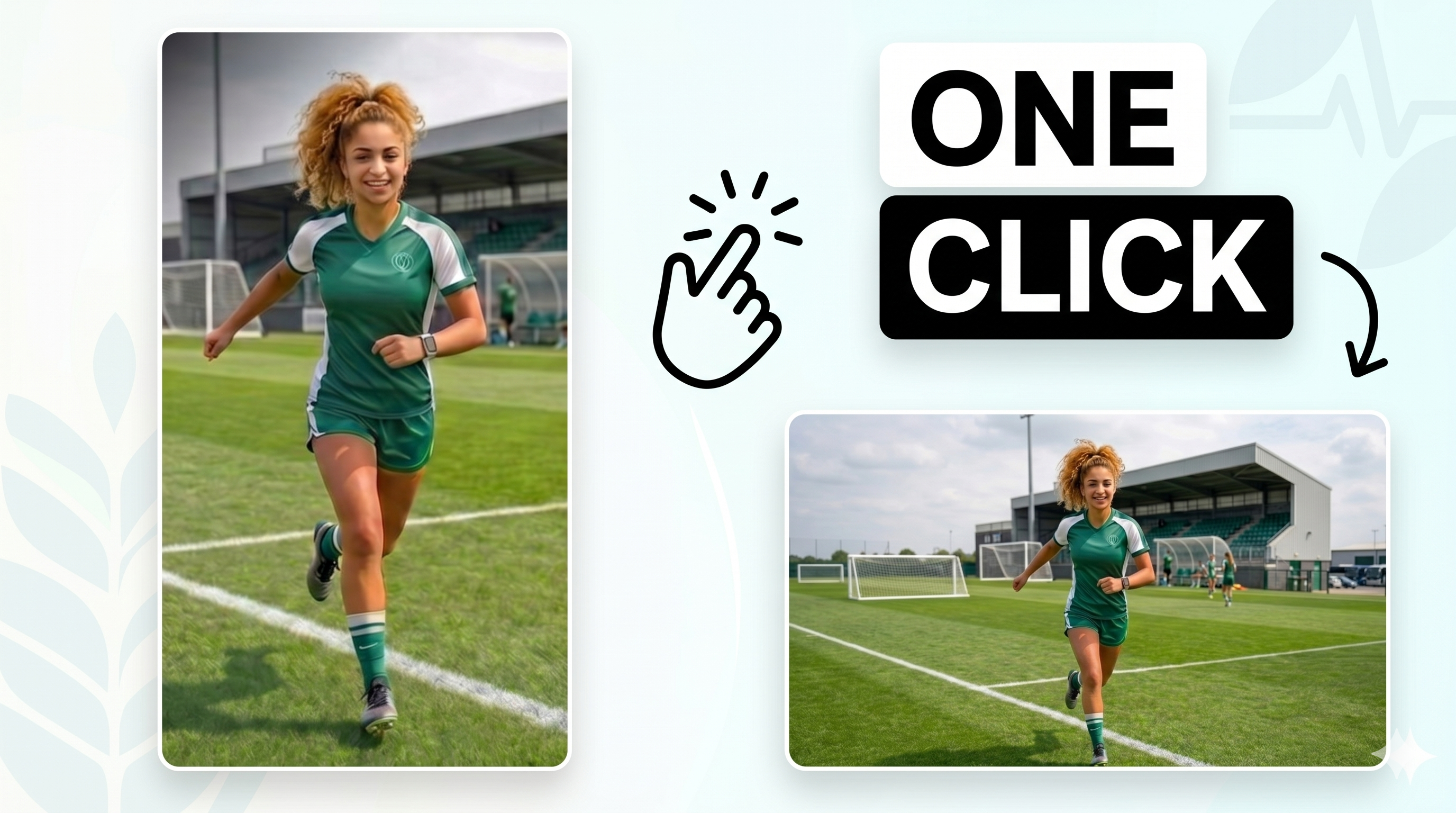
If you want to turn a vertical clip into a landscape video for YouTube, websites, or
ads, there are three main paths. Two of them force a tradeoff. One of them keeps the original content and
expands outward.
For YouTube landscapeFor websites & adsNo crop required
Method 1: cropYou fill a 16:9 frame by cutting away the original picture.
Method 2: bars or blurYou keep the original picture but surround it with filler.
Method 3: AI outpaintingYou keep the center and extend the scene outward.
Three common approaches
Three ways to convert a vertical video to landscape.
Most tools do one of three things: remove part of the image, shrink it and pad the sides, or generate new
side content. The right choice depends on whether you care most about speed, visual quality, or preserving the
original frame.
Method 1 · crop to fit
Crop
Fast, common, and often destructive. The editor zooms in until the vertical clip fills a 16:9 landscape
frame.
Works if the important subject is dead center.
Often cuts off captions, hands, products, or headroom.
Feels like a compromise when the original composition mattered.
Tradeoff: native-looking frame, but part of your actual content is gone.
Method 2 · preserve by padding
Blur bars
You keep the original vertical video untouched, then fill the left and right sides with black, solid color,
or a blurry duplicate.
No content loss inside the original frame.
Very obvious that the video was repurposed later.
Feels small on desktop or full-width landscape players.
Tradeoff: nothing gets cut, but the output rarely feels native.
Method 3 · ai outpainting
Expand with OmniFit
OmniFit keeps your original vertical content in the center, then uses AI outpainting to extend the scene on
both sides so the final result fills a true landscape frame.
The original content stays intact.
The frame becomes wider instead of more cropped.
The result is much closer to something that looks made for landscape from the start.
Special value prop: expand without losing content.
Original contentCrop: lost
Screen usageBlur bars: weak
Looks nativeOutpainting: strongest
OmniFit advantageExpansion, not deletion
Current crop tools
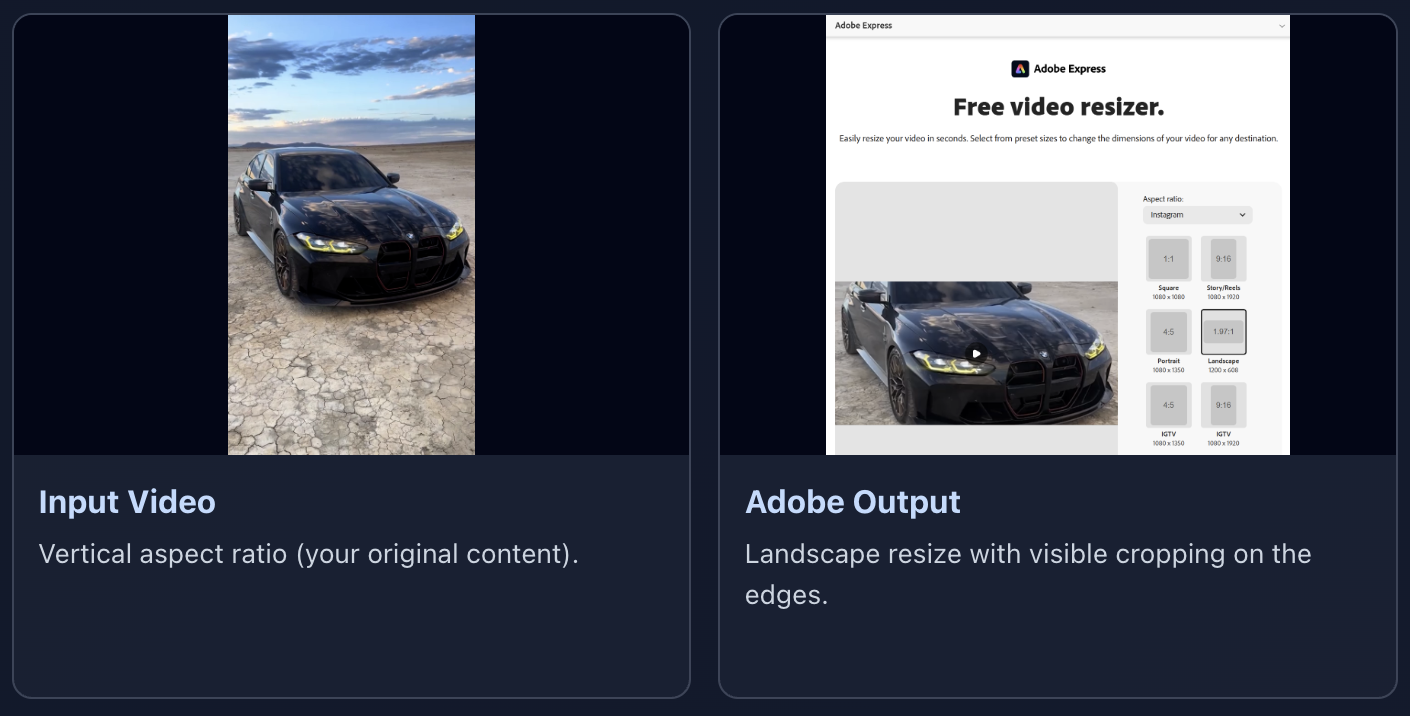
Method 1: Crop with reframing tools
These tools resize a vertical clip by zooming into it until it fills a landscape frame. You get a wide
export, but the price is missing picture area.
Best when the subject is centered and the clip is simple.
Weak when captions, hands, products, or edge details matter.
Fast to export, but often expensive in content loss.
From the OmniFit vs Adobe Video Resizer comparison: left is the original
vertical input, right is Adobe's landscape output with visible cropping. See full comparison.
Current blur-bar tools
Method 2: Pad with blurry background
These tools keep the original video intact, then fill the empty side space with blur, solid color, or
black bars. Nothing gets deleted, but the result still looks like a vertical video parked inside a
landscape player.
Both examples are the same type of workaround: preserve the center clip, then
fill the sides with blurred filler instead of real new scene content.
Current ai outpainting tools
Method 3: Expand with OmniFit
This is the only method here built around expansion instead of deletion or filler. The center content
stays, and the frame grows outward to become landscape.
Adds scene-matched side content instead of blur bars.
Best fit when you want a landscape result without sacrificing the original shot.
OmniFit in actionNo timeline editing, no blur layers, no manual crop. The vertical source stays intact while AI
extends the scene into a full 16:9 output.
Same showcase clip as the original blog post: before is the source vertical
video, after is the OmniFit outpainted landscape version.
Why it matters
OmniFit's value is not just format conversion.
The real difference is philosophical. Instead of asking, “What can we throw away to make this fit?” OmniFit
asks, “How can we preserve the original shot and build outward from it?”
At OmniFit, the goal is not to squeeze a vertical video into a horizontal box. The goal is to keep the video
you made — then expand the canvas around it.
Keep faces, captions, and products
When you crop, the first things to go are often the exact details that made the video usable. OmniFit is
strongest when you need to preserve that center content.
Fill landscape naturally
Blurred filler and black bars waste space. Outpainting gives the wider frame actual scene content instead
of obvious padding.
Repurpose without re-editing from scratch
If the original vertical cut already works, OmniFit helps you adapt it for a wider placement without
rebuilding the piece frame by frame.
How OmniFit works
A simple three-step flow.
The workflow follows the same clean tone as the main OmniFit site: upload, expand, preview.
1
Upload your vertical video
Start with the clip you already made for TikTok, Reels, Shorts, or mobile ads. No timeline setup, no
duplicate background layers, no manual reframing.
2
Let AI outpainting expand the scene
OmniFit analyzes the original frames and extends the left and right sides so the output becomes landscape
while the core vertical content stays untouched.
3
Preview and download the wider version
You get a landscape-ready result that is better suited for YouTube players, site embeds, and wider
placements where crop or bars would feel like a downgrade.
Common destinations
Built for the placements where wide framing still matters.
Vertical is powerful for discovery. Landscape still matters when the video needs room, presence, and a more
native fit inside wide surfaces.
YouTube
Web landing pages
Course platforms
Presentation decks
Connected TV ads
Desktop-first embeds
FAQ
Questions creators usually ask first.
Why not just crop the video?
Because crop solves the aspect ratio by deleting picture area. If the original composition, captions, or
product framing matter, that tradeoff is often too expensive.
Why not just use blur bars?
Blur bars preserve the original clip, but they do not really solve the viewing experience. The output still
looks like a vertical asset parked inside a wider player.
What is the special OmniFit advantage?
OmniFit's special value prop is simple: it expands the frame without losing the original content. That is
the core reason to choose outpainting over crop-based conversion.
Ready to try it
Turn one vertical clip into a wider asset.
Use crop if you are willing to lose content. Use blur bars if you only need a quick placeholder. Use OmniFit
when you want the frame to expand instead of shrink.