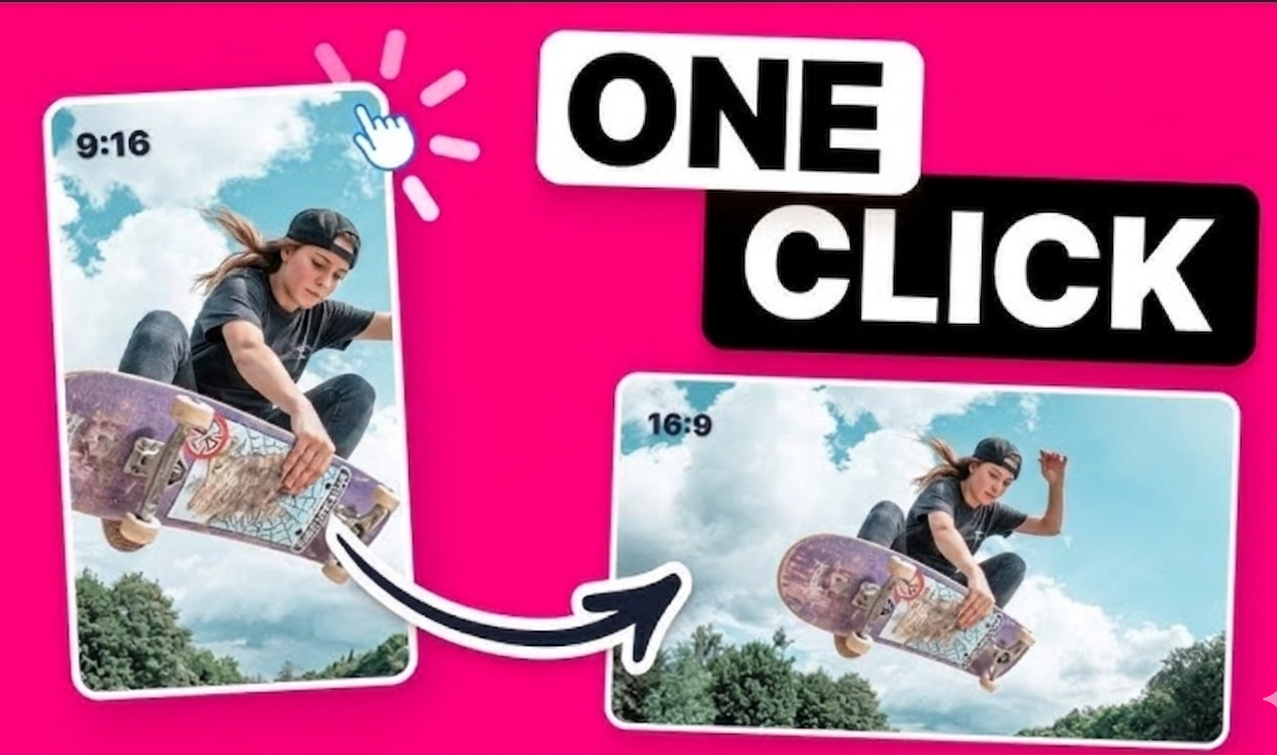
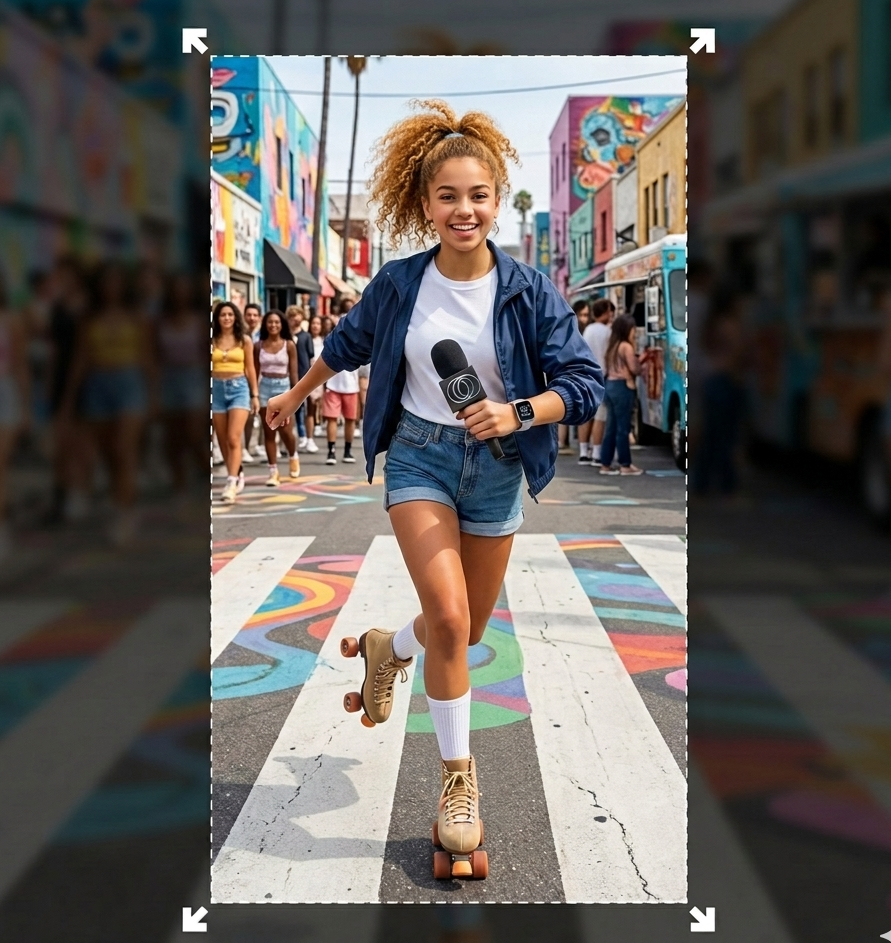
Built for vertical clips that need to become landscape
Most vertical to landscape workflows force a bad tradeoff: crop the video, add blur filler, or rebuild the project by hand. OmniFit is designed for the cleaner option: AI outpainting that expands the canvas.
Expand vertical video into landscape without losing the frame
A normal resizer crops the top and bottom or leaves black bars on the sides. OmniFit uses AI outpainting to expand the missing landscape area while keeping the original vertical video intact.
Fill the 16:9 canvas with generated context, not blur filler
Blurred backgrounds can make a reused Reel or TikTok look unfinished. OmniFit studies the scene and generates new side content so the landscape video feels native on YouTube, websites, presentations, and ads.
From vertical video to landscape in four steps
01
Upload a vertical video
Start with a TikTok, Reel, Short, phone clip, product demo, or any 9:16 vertical source.
02
Choose landscape output
Select 16:9 landscape so OmniFit knows you want a YouTube-ready widescreen canvas.
03
Preview AI outpainting
Check the generated side areas before committing to the full result.
04
Download your landscape video
Export a clean horizontal MP4 ready for YouTube, landing pages, ads, or desktop viewing.
Choose the right vertical to landscape method
A video resizer can mean very different things. If you only need a fast post, crop or blur can work. If you want a polished landscape result, AI outpainting is the method that preserves the original clip while filling the new frame.
Crop
Fast, but cuts away the top and bottom of your vertical footage.
Blur background
Keeps the full clip, but often looks recycled or template-made.
Manual edit
Works for advanced editors, but takes time and does not create new scene detail.
AI outpainting
Expands the actual canvas so the result looks like a native landscape video.
Want the full breakdown?
See other existing tools available in the market, compare the tradeoffs, and watch OmniFit in action in the complete vertical-to-landscape walkthrough.
Turn a vertical TikTok or Reel into a clean YouTube 16:9 upload without pillarboxing.
Shorts to website hero
Reuse vertical social clips as landscape website sections, launch videos, or product pages.
Phone video to presentation
Make vertical phone footage fit landscape slides, demos, courses, and internal decks.
Vertical ad to landscape ad
Adapt mobile-first creative into horizontal placements for desktop, YouTube, or landing pages.
Frequently Asked Questions
What is a vertical to landscape video expander?
A vertical to landscape video expander converts a 9:16 vertical video into a 16:9 landscape video. OmniFit does this with AI outpainting, which generates new side areas instead of cropping your original frame.
Is AI outpainting better than cropping?
For many vertical videos, yes. Cropping removes important content from the top and bottom. AI outpainting keeps the original video visible and fills the empty landscape space with generated context.
Can I use this as a video resizer for YouTube?
Yes. The page is designed for creators who need to resize vertical clips into YouTube-ready 16:9 landscape videos without black bars or awkward crops.
What are the alternatives to AI outpainting?
The common alternatives are cropping, blurred backgrounds, manual editing, or standard resize tools. For a full comparison and demo, read the vertical-to-landscape how-to guide linked on this page.
Expand your vertical video into landscape
Upload your clip, preview the AI outpainting, and download a 16:9 landscape result without cropping your original video.